

A well-written email that lands in spam, or bounces, has not been read. Before a client’s campaign sends, we go through a short list of technical basics. This is what is on the list, why it is there, and what each check can and cannot tell you.
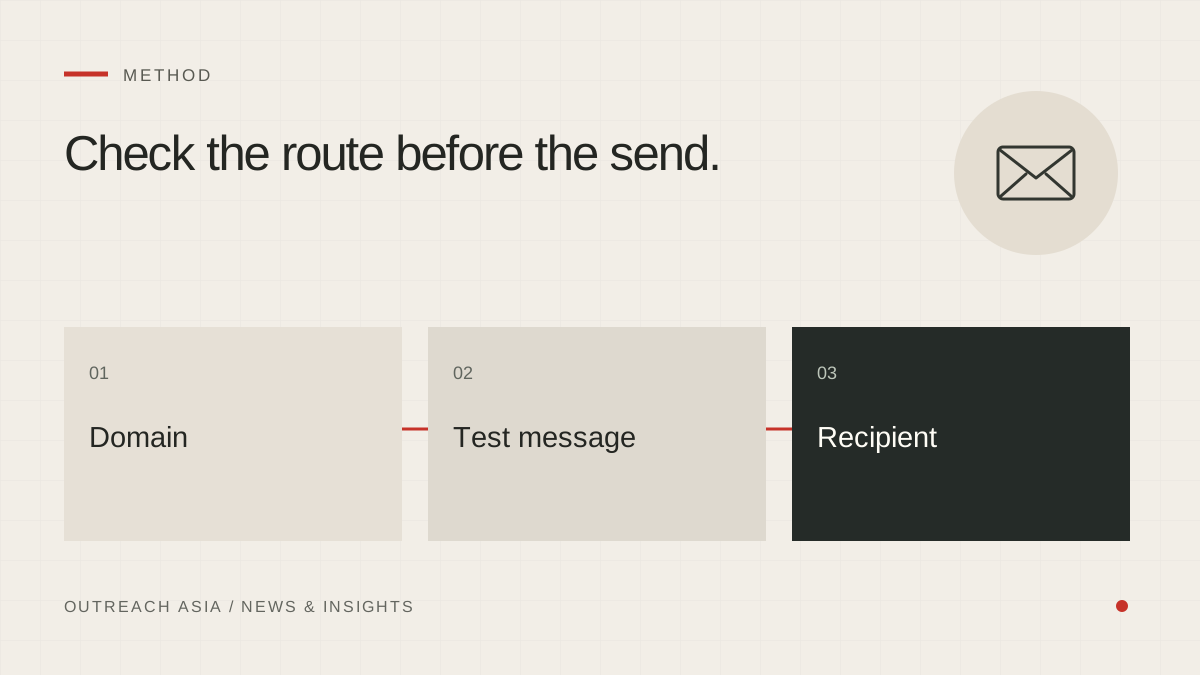
Check the route before the send.
- Domain records
Check SPF, DKIM and DMARC for the sending domain.
- Actual test email
Inspect delivery and authentication results in its headers.
- Contact checks
Use a published business address with a working mail domain.
- Sending limits
Respect warm-up limits and suppress hard-bounced addresses.
A visual summary of this article. Read the full explanation below.
SPF, DKIM and DMARC.
Three DNS records tell receiving mail servers whether a message really comes from your domain.
- SPF lists the servers allowed to send mail for your domain.
- DKIM adds a signature so the receiver can check the message came from your domain and was not altered.
- DMARC tells receivers what to do when those checks fail, and where to send reports.
When you connect your own mailbox, the app looks up the SPF and DMARC records for your domain, and the DKIM key once you enter the selector your mail provider gives you.
What a record check cannot prove.
Finding a record is not the same as passing. An SPF record may not include the provider you actually send through. A DKIM key may exist without your messages being signed. The app says this plainly next to each result rather than showing a reassuring tick.
So the next step is a test email to your own mailbox. Check whether it arrived in Inbox or Spam, then open the original headers and read the receiving provider’s SPF, DKIM and DMARC results. Delivery to your own mailbox does not prove delivery to anyone else’s, but a failure here is worth fixing before any prospect is contacted. No prospect is contacted by the test.
Addresses that cannot receive mail.
Before a company is contacted, its domain is checked for a mail server. A domain with none would bounce anything sent to it, so the company is marked as not permitted for email and the reason is shown. Special-purpose inboxes, such as privacy, abuse or no-reply addresses, are not used either.
Bounces end contact with that address.
A hard bounce means the address does not exist or will not accept mail. The address is added to the do-not-contact list and is not tried again. Bounces also appear in your notifications, so a run of them is noticed early rather than at the end of the month.
A gradual warm-up, per mailbox.
A new mailbox that suddenly sends many messages to strangers looks like spam, because that is what spam looks like. So each sending mailbox starts at ten first emails a day for its first two weeks and rises in weekly steps to thirty.
The count starts from the days the mailbox has actually been sending, not from when research began. The limit belongs to the mailbox, not to a campaign, so three campaigns share one daily budget. Autopilot applies its own ceiling underneath the warm-up limit, never instead of it.
The agency mailbox or your own.
In the last step of guided setup you choose how messages are sent: through the Communication21 agency mailbox, or through your own mailbox. The same limits and checks apply to both. If you move to your own mailbox, it warms up from the start.
Before the first send.
- SPF and DMARC records found for the sending domain, and a DKIM key for the selector in use.
- A test email arrived in Inbox and its headers show passing results.
- Every address comes from the company’s own website and its domain has a mail server.
- Hard bounces are on the do-not-contact list.
- Daily sending stays within the mailbox’s warm-up limit.
Editorial description of how Outreach Asia approaches the work. Examples are illustrative. Nothing here is a guarantee of replies, meetings or inbox placement.