

Setting up outreach used to mean filling in a long form before anything useful happened. The redesigned workspace replaces that with six steps. Each has one job, shows a time estimate of three to five minutes, and can be revisited later.
From your material to first outreach.
- Add your material
Website, brochures, catalogues or a short brief.
- Check the facts
Review what was extracted and resolve contradictions.
- Approve statements
Choose what messages may say about the business.
- Pick campaigns
Define the audience and outreach purpose.
- Write your message
Choose tone, content, signature and attachments.
- Connect sending
Choose the mailbox and channels; first drafts still wait for review.
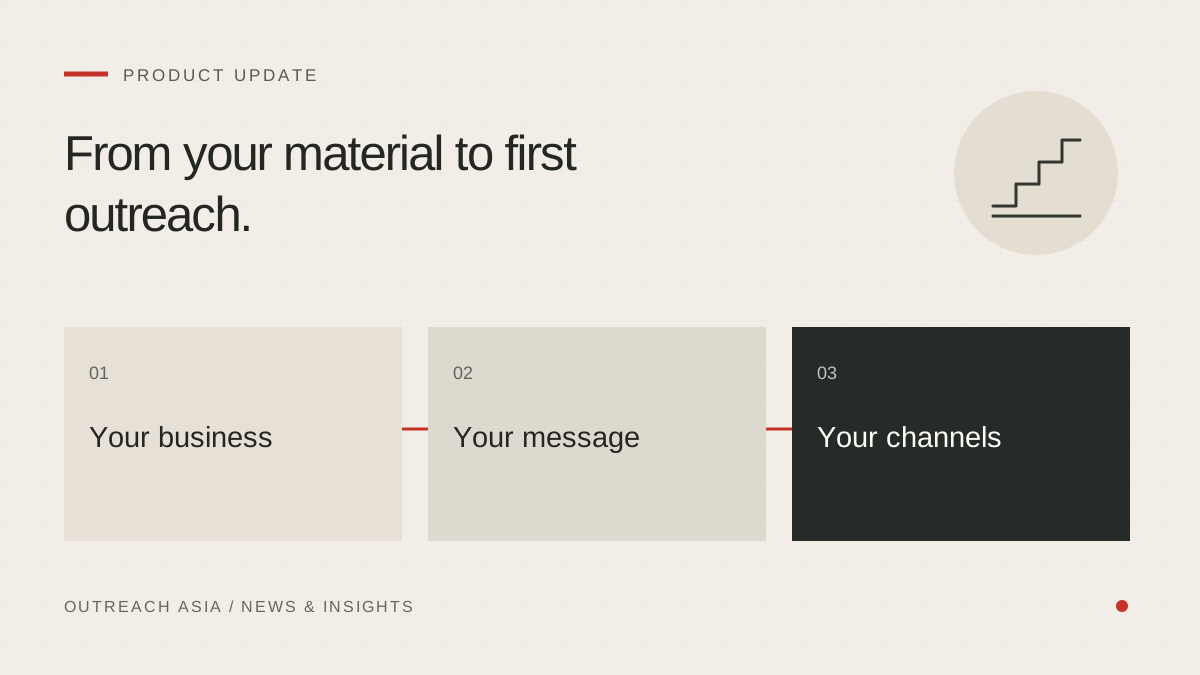
A visual summary of this article. Read the full explanation below.
1. Tell us about your business.
Add your website, brochures, catalogues or price lists, or type a short brief. A catalogue that is mostly photographs is read too, so you are not asked to retype it.
2. Check what we learned.
The facts pulled from your material are shown for you to check, each one read from your own documents. Where two documents disagree, you are asked to settle it. Nothing is guessed.
3. Approve what emails can say.
You choose which statements about your business may be used with buyers. Each is graded Approved, Needs proof or Blocked. Only approved statements can appear in an email, and a checker holds any draft that says more.
4. Pick your first campaigns.
Say what you want to achieve, such as finding buyers or distributors, and choose from the campaigns suggested for it. Up to three can run at once. If you come back to this step later, campaigns you paused or set aside stay as they are.
5. Write your first message.
Choose email or WhatsApp first, what the AI should say, the tone, the greeting, your signature and any attachments. A live preview shows the result as you go. This is the same editor as Settings · First message, so what you set here is what you will find there later.
6. Choose how messages are sent.
Send through the Communication21 agency mailbox or your own mailbox, and link WhatsApp if you want to use it. The page shows how many sends remain today under the mailbox’s daily limit. Nothing goes out until you say so, and every first message still waits 24 hours in review.
Steps that fail say so.
If a step cannot finish, for example because a document could not be read or a mailbox did not connect, the step now reports that plainly and shows why a save was refused. It does not quietly mark itself complete. Setup is only done when each step really is.
Why the steps come in this order.
Each step depends on the one before it. The facts come from your material, so material comes first. Statements are drawn from checked facts, so facts are checked before statements are approved. Campaigns need to know what may be said about you, and the first message can only use approved statements. Sending is chosen last, because nothing should be able to go out before everything it depends on is in place.
After setup.
Get started keeps a checklist of the six steps, so you can see which are done and return to any of them. Once setup is complete, the same controls live in Company profile, Campaigns and Settings. Changing them later does not mean going through setup again.
This article describes the product as released on 28 September 2026. Details may change as the product develops; your workspace always shows the controls available to you. Nothing here is a guarantee of replies, meetings or inbox placement.